Description
Our Compliance Team will review hits that are found on background checks and make the decision to either Approve, mark as them Consider, or initiate Pre Adverse Action based on a predetermined set parameters and guidelines created by the Partner, called an Adjudication Matrix. These rules are used to determine if an applicant's background check meets the requirements necessary for a particular role.
Adjudication Matrices
Each Partner that chooses to utilize this service will work with our team to create their tailored Adjudication Matrix. When reviewing hits as part of the Compliance Review process, agents will need to follow the specific Adjudication Matrix created by the Partner.
College Hunks Hauling Junk (Criminal)
College Hunks Hauling Junk (MVR)
The Ticket
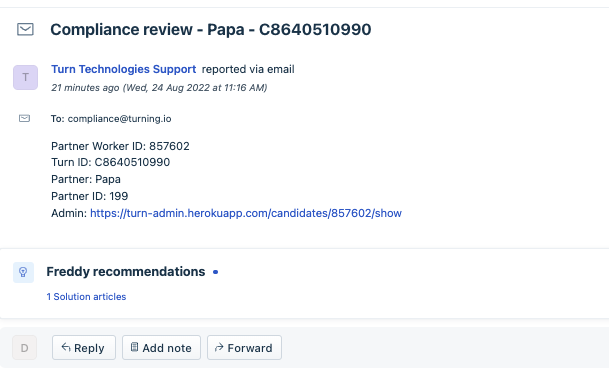
A ticket is created with the subject line:
Compliance review - PARTNER - TURN ID
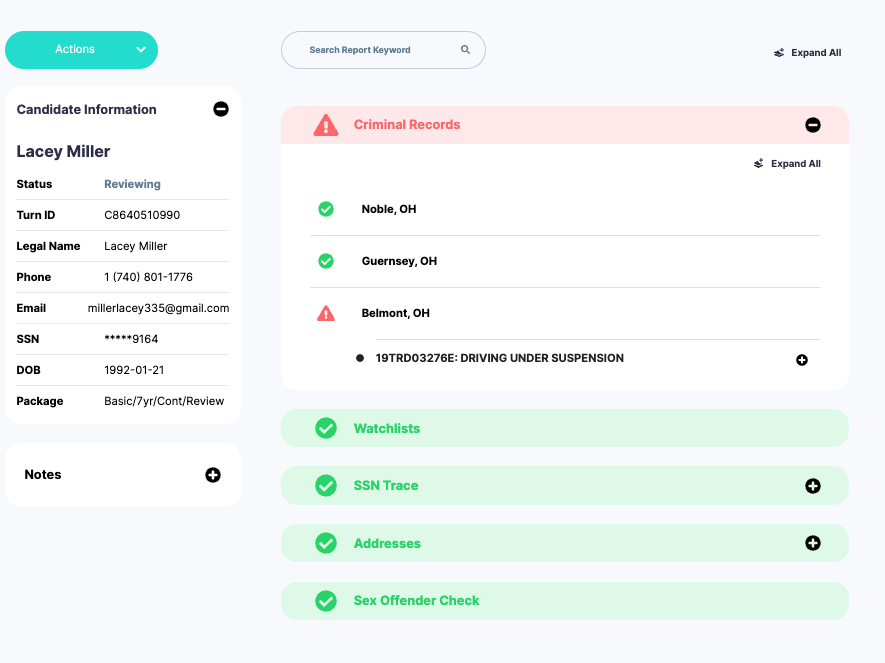
View of Partner Dashboard:
- The Status will always be Reviewing.
- The item that needs review will be highlighted in red. Expand All to see the details of the hit.
Casework
If you are assigned to review these background checks, please follow these steps:
Step 1: Open the applicant's profile in Turn Admin
- You can access the profile by using the link included in the ticket or searching the Turn ID in Turn Admin.
Step 2: Open the Partner Dashboard
- Expand the hit(s) that are shown on the Criminal Records and MVR sections.
Step 3: Open the Adjudication Matrix for the specific Partner.
- Choose the correct Adjudication Matrix
Step 4: Review each hit and compare it against the Adjudication Matrix
- Determine if any of the hits are enough to disqualify the applicant based on the guidelines decided by the Partner.
- Confirm the disposition, date and that the applicant's information matches for all hits under the Criminal Records and Motor Vehicle Record sections.
- If any of the hits do not meet the requirements for the Partner and the applicant is disqualified, the records are considered Unacceptable.
- If all hits meet the requirements for the Partner and the applicant is not disqualified, the records are considered Acceptable.
Step 5: Taking Action After Review
Step 5a: Acceptable Criminal Records and Acceptable Motor Vehicle Record
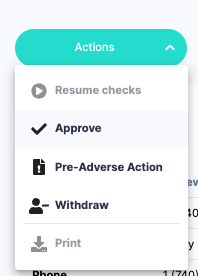
- In the Partner Dashboard, go to ACTIONS and Approve the Applicant, or Resume Checks.
Step 5b: Unacceptable Criminal Records and/or Unacceptable Motor Vehicle Record
- The next steps will be determined by the Partner's Adjudication Matrix.
- Some partners will request that if the Criminal Record is Acceptable, but the Motor Vehicle Record is Unacceptable that we place the applicant in Consider while others require us to initiate Pre Adverse Action.
- If the matrix indicates that a particular hit go to Consider instead of being rejected, edit the profile status to Pending.
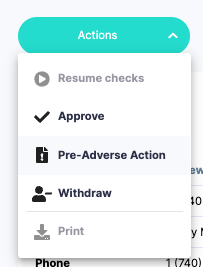
- If Pre Adverse Action is required, go to ACTIONS and choose Pre-Adverse Action.
- We will never use the "Withdraw" button in these scenarios.
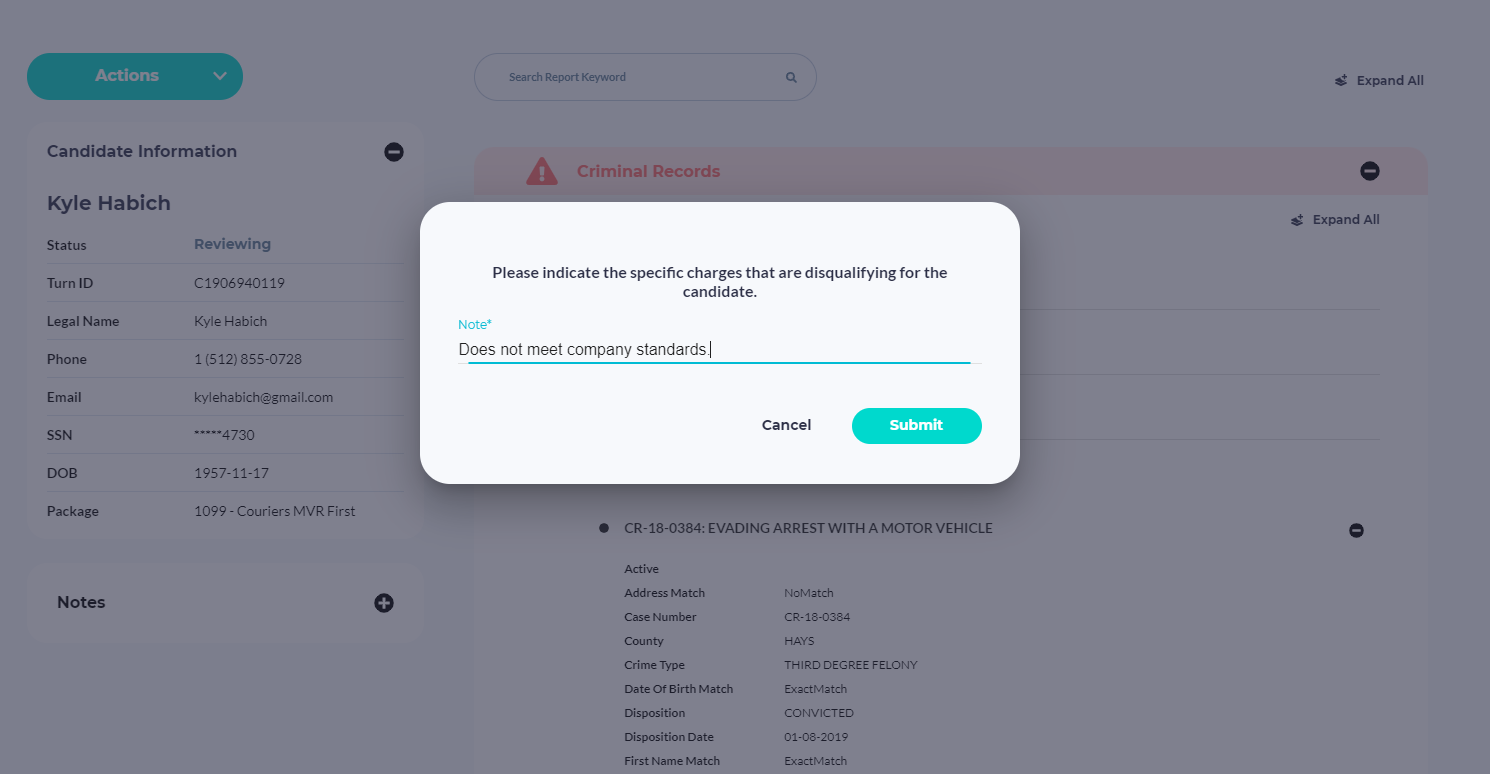
- You will be prompted to provide a reason for disqualifying the candidate. Please type a professional response that includes the at least one hit and that it "Does not meet company standards."
- *Exception: If there are multiple MVR hits that caused the compliance review, the specific hit(s) does not need to be included:
- Leave the note: "MVR does not meet company standards."
- *Exception: If there are multiple MVR hits that caused the compliance review, the specific hit(s) does not need to be included:
Step 6: Update your Freshdesk Ticket
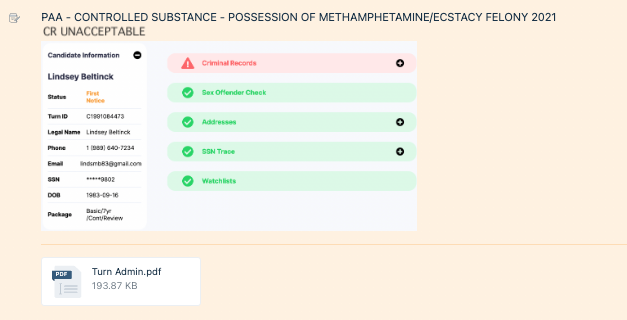
- Add a private note and include the following:
- Decision:
- Approved/PAA/Consider
- Explanation:
- Please list the hit that initiated the Compliance Review and if the MVR and/or Criminal Records were Acceptable or Unacceptable.
- Screenshot:
- Expanded Partner Dashboard. Please make sure the referenced hit(s) can be seen.
- Attach a PDF:
- Information Tab in Turn Admin. The status updates should be visible.
- Decision:
EXAMPLE:
- Look for duplicate Compliance Review tickets by searching FD with the Turn ID.
- Merge any duplicates into the ticket you're currently working.
- Add the appropriate tag that matches the profile's new status.
- Approved / PAA / Consider
- Fill out remaining FD Fields
- Partner Name
- Turn ID
- Type: Compliance Review
- Status: Resolved
- Update your ticket.
Was this article helpful?
That’s Great!
Thank you for your feedback
Sorry! We couldn't be helpful
Thank you for your feedback
Feedback sent
We appreciate your effort and will try to fix the article