The Problem:
The Compliance Team is finding multiple applicants that should be in a "Review" Status, but they are stuck in processing or consent.
The Solution:
We need to review the profile and move the applicants to the appropriate status.
Casework:
Step 1: Search the Turn ID in Turn Admin and in Freshdesk
- Look for existing tickets, or if the ticket has been in Compliance Review. It's important to look at the full story and journey of a background check.
- If there is a NCIS ticket created for the background check, please reach out to Johnathan Estrada in CX.
Step 2: Review the Partner Dashboard
- Review the package requested by the partner.
- If it is MVR First and the criminal records are not yet complete, please reach out to a member of the Customer Success team for assistance. We need to ensure that if a Compliance Review is necessary as a result of the criminal records, that a ticket is generated.
- If the criminal records and MVR checks are complete, please proceed.
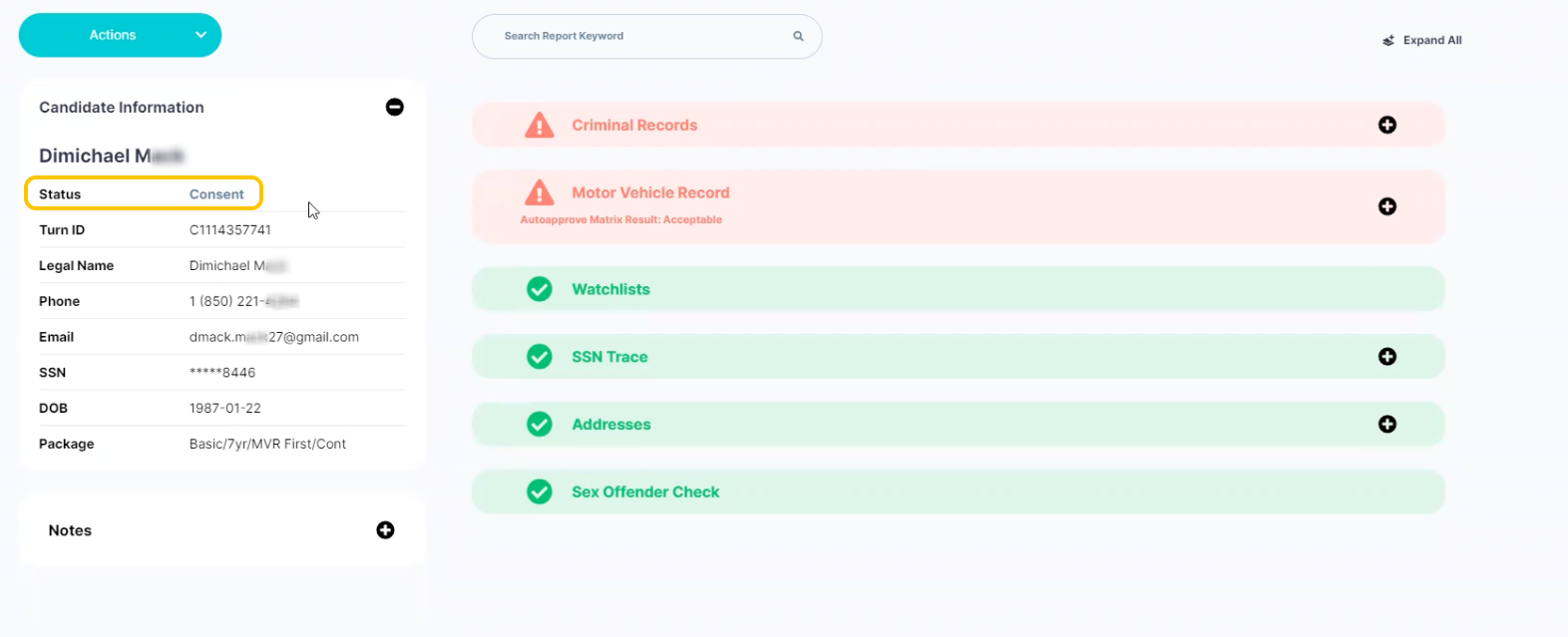
- Confirm the current status (Consent or Processing).
- Processing: If the checks are complete, but the status is Processing, please reach out to a member of the Customer Success team for assistance. There are many reasons a profile may be stuck in processing, so there is not a single solution at this time.
- Consent: If the checks are complete, but the status is Consent, we can confirm that there is a mismatch and it is stuck. Please see the example below and proceed to the next step.
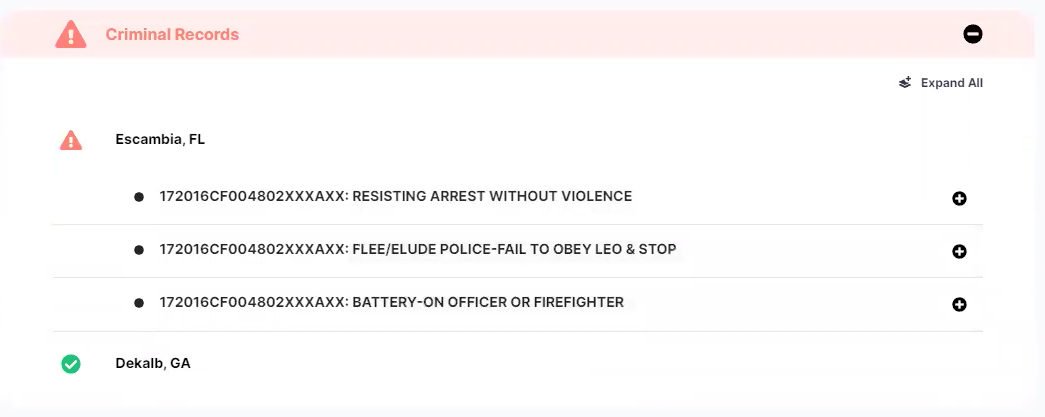
- In the example below, we can see that the Criminal Records are complete
- The records for Escanaba, FL and Dekalb, GA were fulfilled.
Step 3: Review the "Requested Checks" in Turn Admin
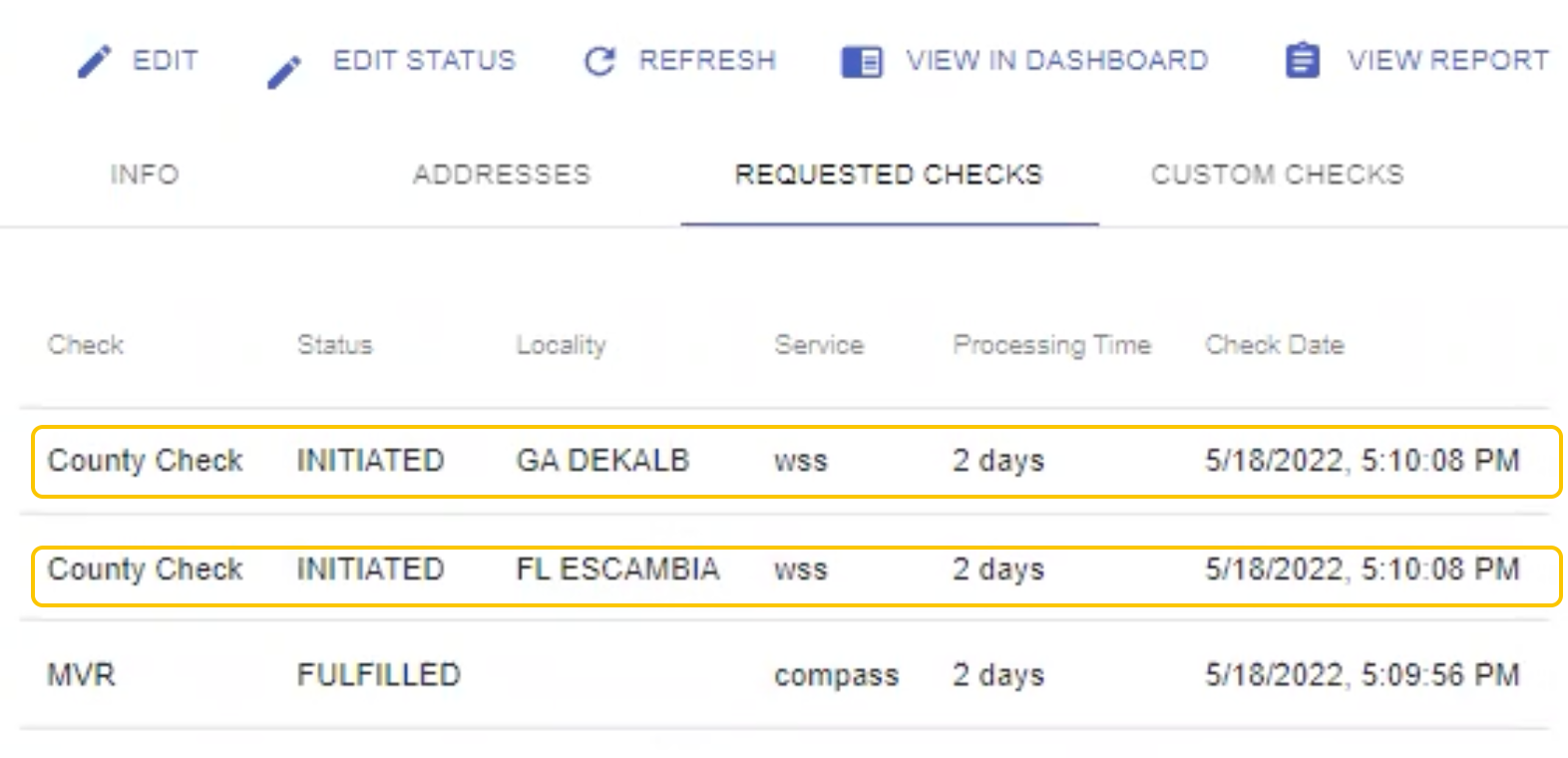
- If the applicant is stuck, Turn Admin will not match the Partner Dashboard.
- In the our example, we know that the Criminal Checks for Escanaba, FL and Dekalb, GA were fulfilled, but they still show INITIATED in Turn Admin.
Step 4: Resume Checks
- Once you have confirmed that the applicant is stuck in the wrong status, and that the "Requested Checks" tab in Turn Admin does not match what is displayed in the Partner Dashboard, we can resume checks.
- The RESUME CHECKS button is located in Turn Admin in the top menu bar.
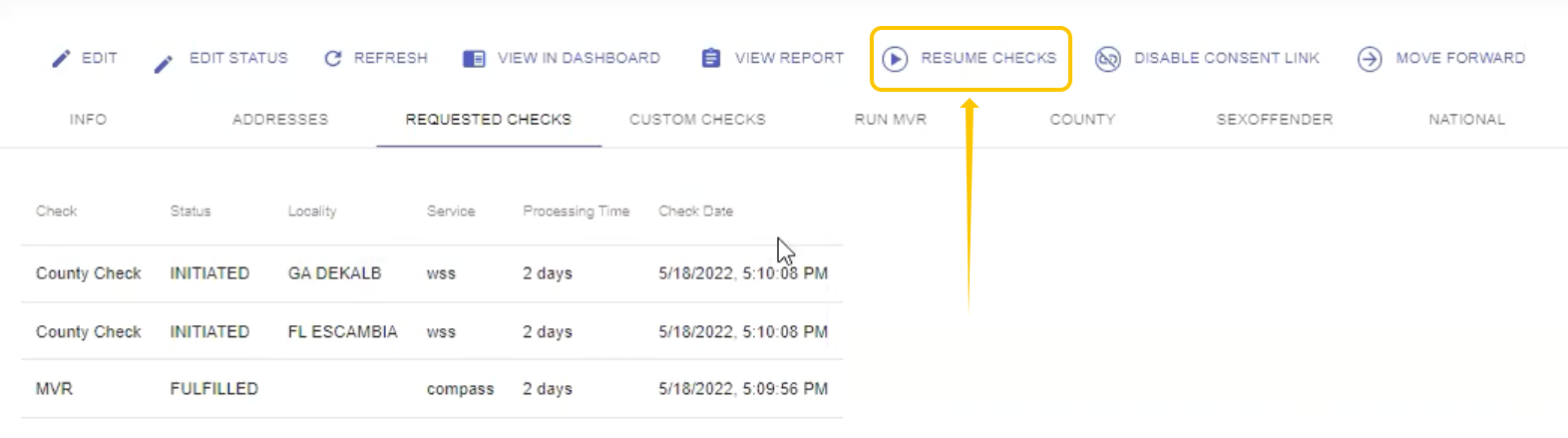
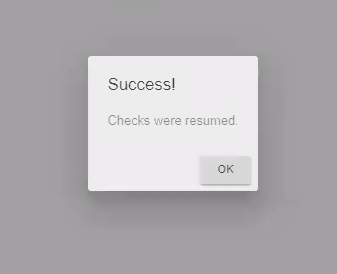
- When the checks have been resumed, you'll receive a small pop up notification:
Step 5: Confirm the current status in Turn Admin.
- After the checks have been resumed, the status should have updated appropriately.
- Instead of being in Consent, the applicant should now be in Review or Approved.
Step 6: Review the Partner Dashboard.
- Confirm that that status has been updated.
- Confirm that the rest of the background check has processed without error.
If Resuming Checks does not work and the status does not update, you can still reach out to the Customer Success (formerly Activations Team). The ticket may be in Manual Mode.
If the ticket is a NCIS issue, you can reach out to Johnathan Estrada.
Was this article helpful?
That’s Great!
Thank you for your feedback
Sorry! We couldn't be helpful
Thank you for your feedback
Feedback sent
We appreciate your effort and will try to fix the article