- CLIENT NOT AUTHORIZED FOR PRODUCT
- SYSTEM ERROR OCCURRED
- CHECK DRIVERS LICENSE AND RESUBMIT
- MULTIPLE RECORDS FOUND
- AN ATTEMPT TO PROCESS THIS REQUEST HAS BEEN MADE MULTIPLE TIMES AND IT IS REJECTED BY THE STATE. PL
- FAILED PA MVR
- NO RECORDS MATCH INPUT CRITERIA OR INCORRECT ORDER INFORMATION
- IMPORTANT COMPLIANCE:
- OUTSTANDING MVR
CLIENT NOT AUTHORIZED FOR PRODUCT
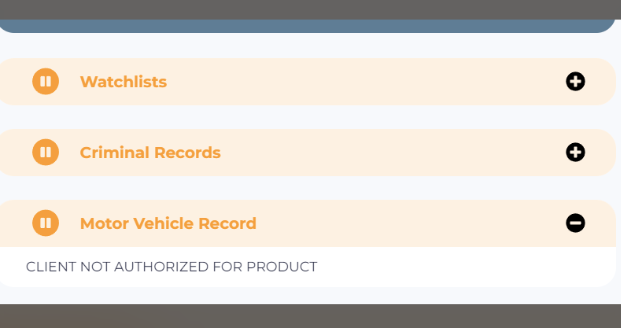
Request the MVR again via Turn Admin
Put the note in the ticket including the Turn ID, stating that it had to be requested again following the vendor’s instructions.
Go to Partner’s dashboard and refresh the applicant’s profile
SYSTEM ERROR OCCURRED
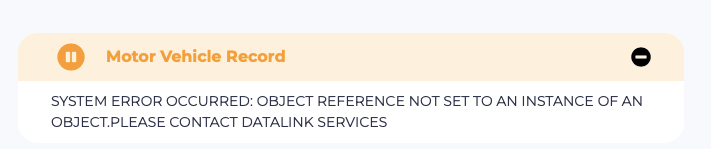
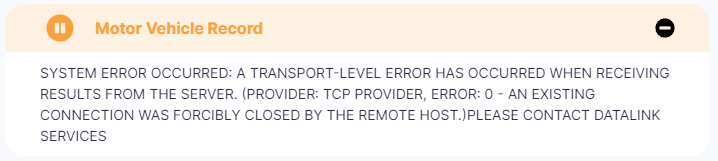
THIS ERROR WILL NOT CREATE A TICKET FOR CX, as a result, Compliance agent will assign the compliance review ticket to CX Agent.
CHECK DRIVERS LICENSE AND RESUBMIT

THIS ERROR WILL NOT CREATE A TICKET FOR CX, as a result, Compliance agent will assign the compliance review ticket to CX Agent.
MULTIPLE RECORDS FOUND

THIS ERROR WILL NOT CREATE A TICKET FOR CX, as a result, Compliance agent will assign the compliance review ticket to CX Agent.
AN ATTEMPT TO PROCESS THIS REQUEST HAS BEEN MADE MULTIPLE TIMES AND IT IS REJECTED BY THE STATE. PL

THIS ERROR WILL NOT CREATE A TICKET FOR CX, as a result, Compliance agent will re-run the MVR, if this does not work please reach out to your manager.
FAILED PA MVR
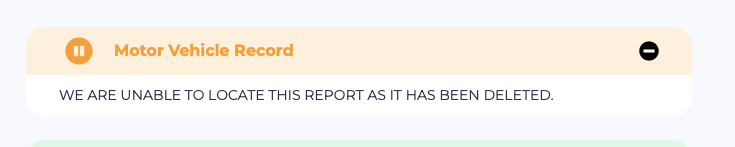
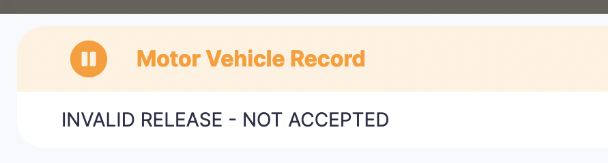

Vamos a revisar la PA release form, si la firma sólo está “typeada”se hará lo siguiente:
Change the ticket type to “PA applicant release form”
Set the ticket as pending
Assign the ticket to CX Agent
Insert Turn ID in the properties
NO CAMBIAR EL STATUS DEL REPORTE/DO NOT CHANGE THE PROFILE STATUS.
AGREGAR CUANDO HAY CRIMINALS
ESTO SOLO APLICA PARA PAPA (cualquier otro partner por favor notificar en el channel correspondiente)
NO RECORDS MATCH INPUT CRITERIA OR INCORRECT ORDER INFORMATION

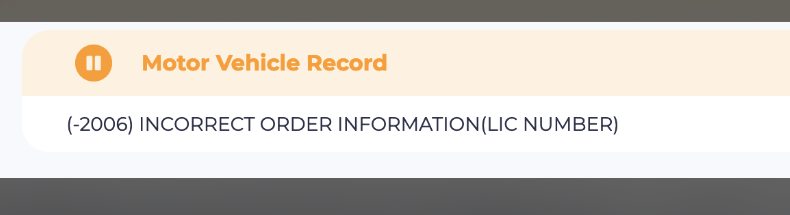
On MVRs where we need id verification:
CX Process:
We send the automated email which creates a FD ticket.
CX Agent will send the more personalized email through FD and an SMS through grasshopper (shortly after the automated email)
CX Agent will update the follow-up date field in FD in addition to leaving a note
24 hours later if the applicant hasn't responded by text or email, CX Agent will click the "applicant has not responded" checkbox and resolve the ticket
If/when the applicant responds, CX will uncheck the "applicant has not responded" checkbox and resolve the mismatch
IMPORTANT COMPLIANCE:
SINCE COMPLIANCE REVIEW TICKETS ARE CREATED AT THE SAME TIME AS MVR FAILED TICKETS:
Compliance Agent will merge the Compliance Review Ticket into CX ticket (MVR failed) and will change the ticket type to Verify Applicant Details - MVR
When CX agent sees a merged ticket from compliance in the CX ticket (MVR failed) and the applicant has responded, CX agent will fix the MVR and will change the ticket type to ‘ Compliance Review’, and re-assign the ticket to Compliance.
When CX agent sees merged ticket from compliance in the CX ticket (MVR failed) and the applicant has not responded, CX agent will check “applicant did not respond”, change the ticket type to ‘Compliance Review’, and re-assign the ticket to Compliance
If compliance gets a compliance review ticket about an MVR but there is no corresponding verify applicant details ticket for some reason:
Compliance agent will assign the compliance review ticket to the CX Agent.
Also, the Compliance agent will change the ticket type to Verify Applicant Details - MVR
Compliance will leave a note on the ticket - (Hi, We need this DL. Thank you!)
Once the CX Agent runs the MVR or completed the follow-up, the compliance review ticket will be re-assign to the compliance agent.
CX Agent will change the ticket type to Compliance Review.
Finally, the Compliance agent will adjudicate the BGC.
OUTSTANDING MVR
You will see in the section “REQUESTED CHECKS” the MVR status as INITIATED:
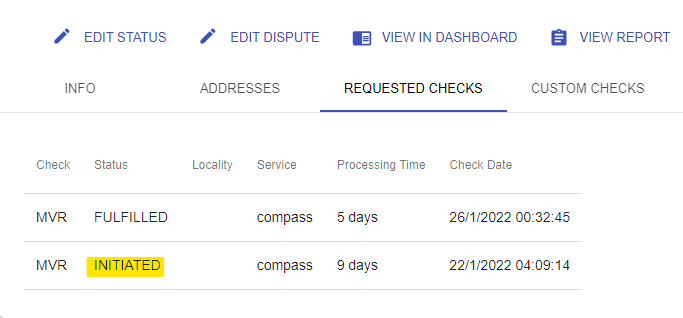
Request to Activations team to fix the issue.
MVR CHECK NO MUESTRA DL NUMBER (VIRGINIA AND OREGON DRIVER'S LICENSE)
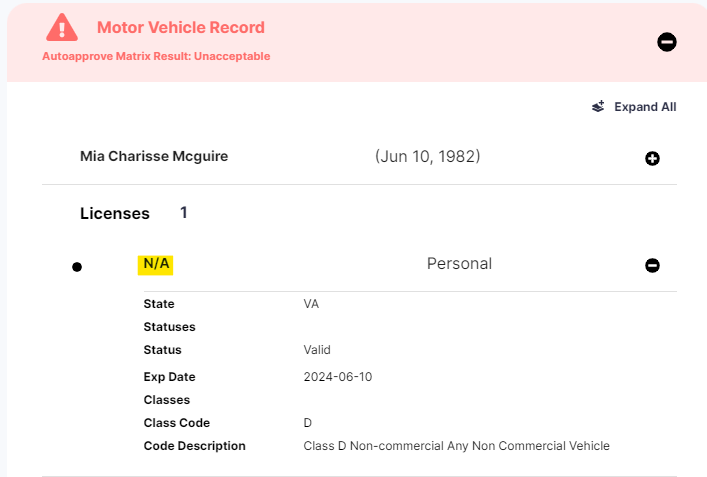
Compliance agent will do the following:
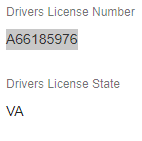
Copy DL# from the Turn Admin
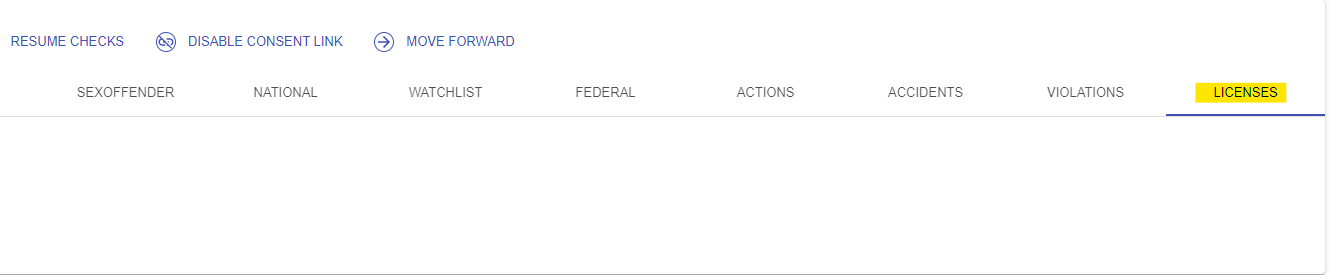
Go to “LICENSES” at the end of the Turn Admin
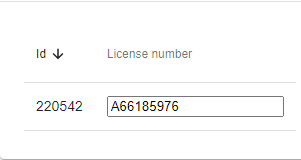
Insert the DL# in the search bar and press “ENTER”
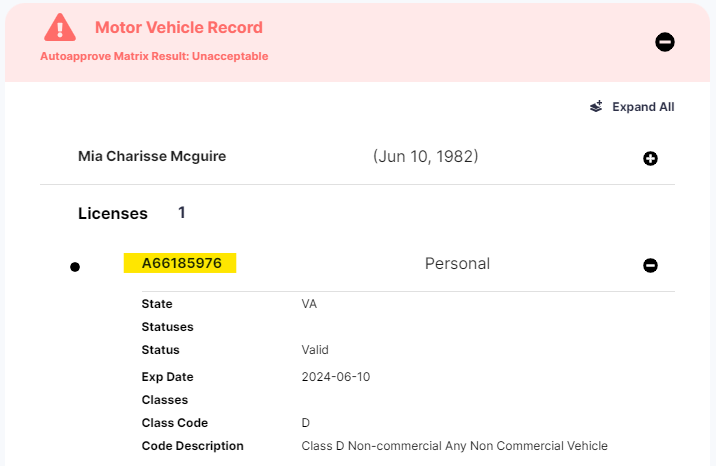
Make sure it is reflected in the Partner Dashboard
Was this article helpful?
That’s Great!
Thank you for your feedback
Sorry! We couldn't be helpful
Thank you for your feedback
Feedback sent
We appreciate your effort and will try to fix the article