- Tools Needed
- Description
- The Ticket
- Casework: Claims of Inaccurate Charges
- Casework: Claims of Outdated Information
Tools Needed
Freshdesk, Turn Admin, Google Sheets, WSS, Dexter,
Description
When an applicant says that there is a mistake or that there is inaccurate information included on their background check, a dispute is created. Steph and Barbara currently review tickets to determine if the ticket is an actual dispute.
The Ticket
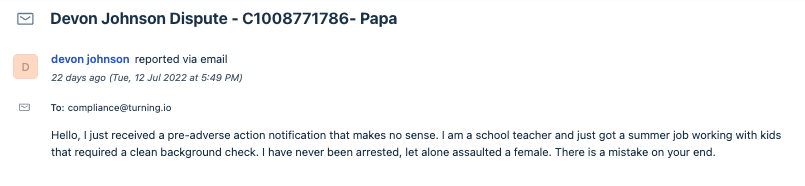
A ticket is created with the subject line:
SUBJECT LINE IN BOLD [PARTNER NAME]
Casework: Claims of Inaccurate Charges
If you are assigned to work these cases, please follow these steps:
Step 1: Collect an ID
Step 2: Open the profile in Turn Admin & view the Partner Dashboard
- Expand the Criminal Records and review the results.
- Locate the charges that the applicant is disputing.
Step 3: Review the original reports found by the vendor
- Information that is available in the reports will vary. There may be addresses, zip codes, SSN, state ID, race, etc. Compare what is available and confirm whether or not that the information is a match.
- First name
- Middle Name
- Last name
- DOB
- Review address if in report
- Weight
- Height
- SSN
- Race
- Verify state ID number or other ID number in the record against IDs provided by the applicant.
- Look for additional information that may confirm or discard the information provided by the applicant.
- If disputed charges are from Dexter or Runners, we can re-request the checks from WSS.
- If the personal information and/or charge details are not sufficient, go to the County Court records to review the case details and updates.
- Some counties have online records and can be found here.
- Did the applicant have an address on file within the counties where charges were filed?
Step 4a: IT'S A MATCH! - The personal information and/or charge details match the applicant's information.
- If our investigation determines that the charges are accurate and should remain on the background check, we need to update our Freshdesk ticket.
- List any actions and findings from your reinvestigation as a private note. Please include screenshots and specify the vendor that provided the disputed information.
- Communicate the results to the disputing applicant and include a summary of rights with a link to the report.
Step 4b: NOT A MATCH! - The personal information and/or charge details DO NOT match the applicant's information.
- If our investigation determines that the charges are inaccurate and should be removed from the background check, we need to update our Freshdesk ticket.
- List any actions and findings from your reinvestigation as a private note. Please include screenshots and specify the vendor that provided the disputed information.
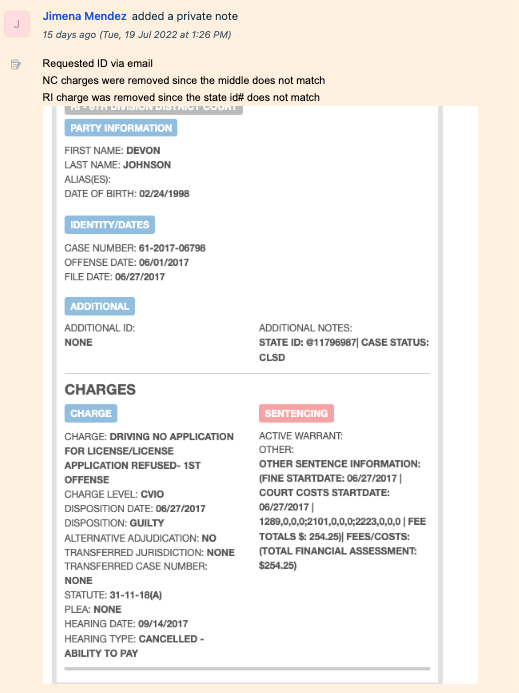
Step 5: Remove the disputed charges from the background check.
- In Turn Admin, navigate to the COUNTY tab and change the disputed charge's toggle to "false."
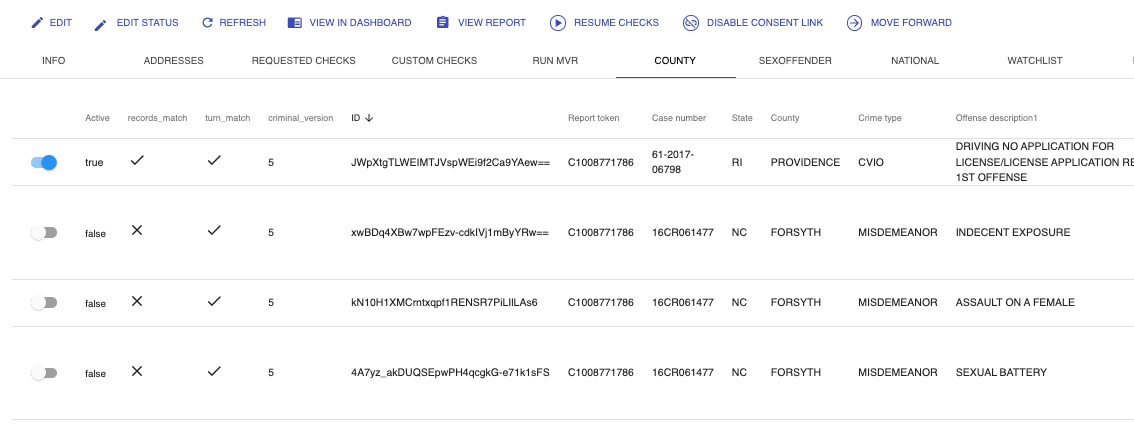
- If the partner does not use Fountain, the status can be changed from Turn Admin.
- Edit Status: Manual
- Add a note: successfully disputed
- SAVE
- The profile's status will be changed to processing.
- If the partner uses Fountain (with the exception of Delivery Logistics), we need to notify the partner of the status change.
Step 6: Confirm that the disputed charges have been successfully removed from the report by reviewing the Partners Dashboard.
Step 7: Update the Compliance GoogleSheet
- Go here and go to the DISPUTES tab.
- Using CTRL+F, search for the dispute using the Turn ID.
- You will need to update the following columns:
- Action taken by Compliance
- Date
- Dispute Status
- Is it a False Positive?
- Compliance Agent

Step 9: Respond to the applicant and provide an update.
- Apply and tailor the canned response: Compliance - Link to amend report to disputing applicant (Clean Report Version)
- Add a link to the applicant's background check.
- A Summary of your Rights Under the FCRA PDF will be automatically added to the message.
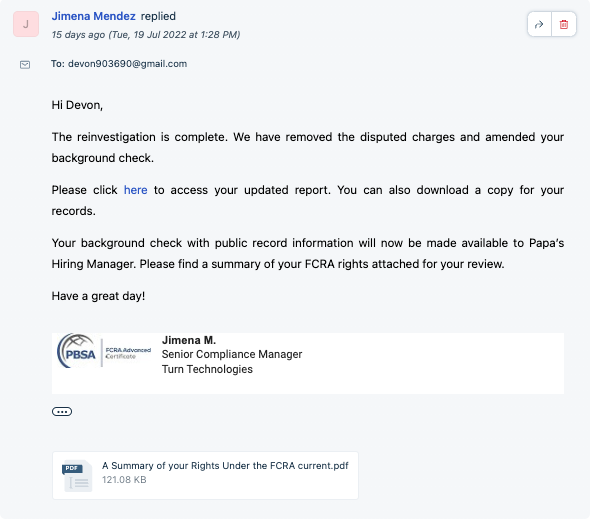
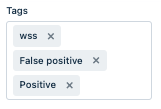
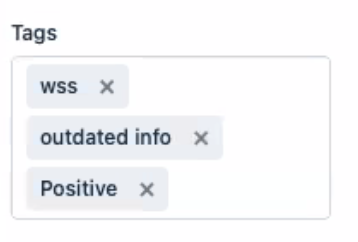
Step 10: Add Tags
- Include the name of the vendor associated with the disputed charge as a tag:
- tags: wss, dexter, runner, etc
- Was the issue a result of a False positive or Outdated Info?
- tags: False positive, Outdated Info
- Dispute found in favor of the applicant
- tag: Positive
- Dispute not found in favor of the applicant
- tag: Negative
Casework: Claims of Outdated Information
Step 1: Review County Court records to review the case details and updates.
- Some counties have online records and can be found here. Feel free to add any county court links if you find one that is not already listed.
- Request the checks again using the same vendor.
- In WSS, the counties will need to be requested manually.
Step 2a: If the new checks are clean, please unlink the charges from the report in Turn Admin.
- In Turn Admin, navigate to the COUNTY tab and change the disputed charge's toggle to "false."
List any actions and findings from your reinvestigation as a private note. Please include screenshots and specify the vendor that provided the disputed information.
Step 2b: If the new checks still show the disputed charges, or if they have further information, we must request Product (with a ticket) to link the new findings to the background check.
- *If the Partner uses the ASSENT STEP, and the report is in CONSENT, we must email the dispute results to the applicant. It will remain in CONSENT.
Step 3: Update the Fresh Desk ticket:
- List any actions and findings from your reinvestigation as a private note. Please include screenshots and specify the vendor that provided the disputed information.
- Communicate the results to the disputing applicant and include a summary of rights with a link to the report.
Was this article helpful?
That’s Great!
Thank you for your feedback
Sorry! We couldn't be helpful
Thank you for your feedback
Feedback sent
We appreciate your effort and will try to fix the article