Tools needed: Freshdesk, Connect, Google Docs, Preview (Mac), Acrobat (PC)
A partner may request that we run a Statewide Criminal Check for an applicant. These are currently handled by Ops - Compliance
A ticket is created:
One-Off Check - [STATE] Statewide - [PARTNER] - [TURN ID]
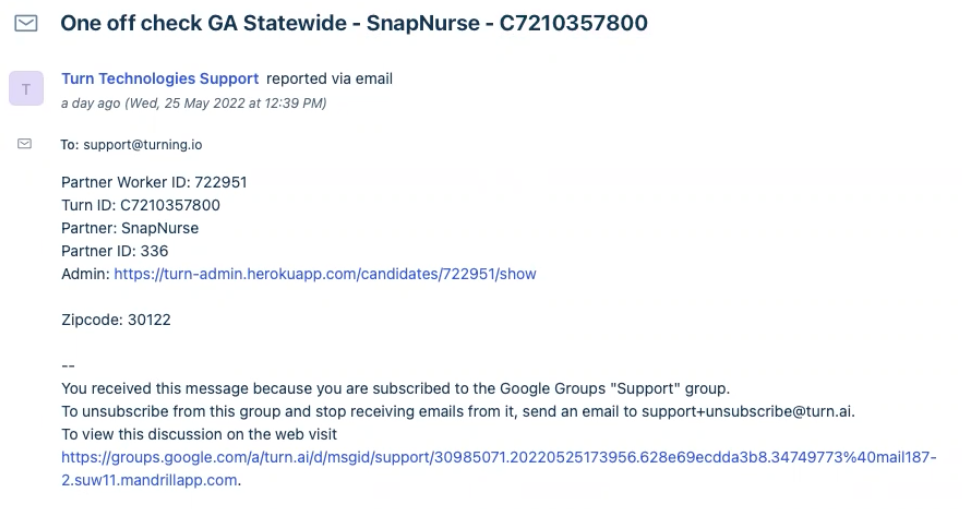
Step 1: Fill out required Freshdesk Fields
Step 2: Open the applicant's profile in Turn Admin
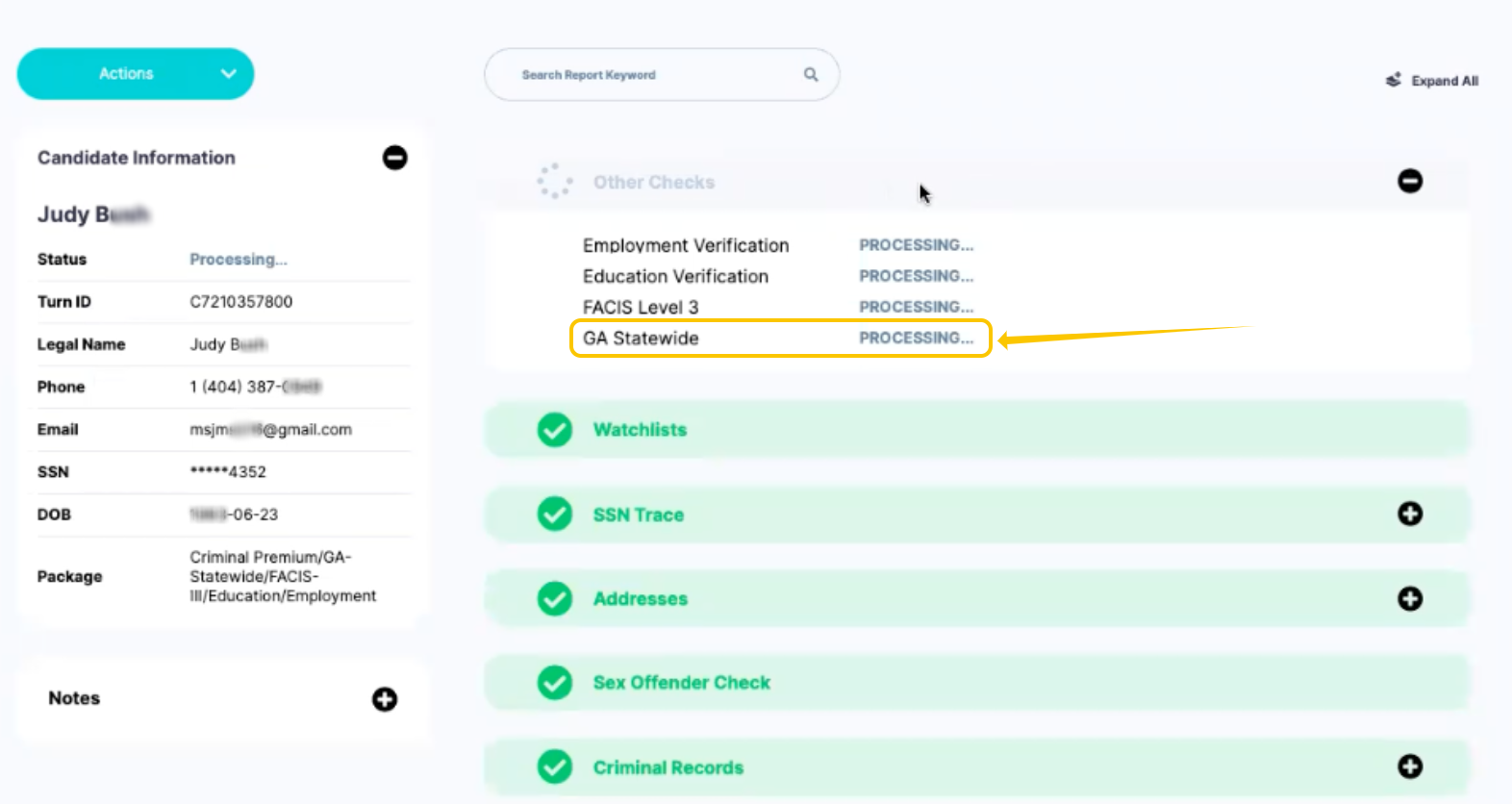
Step 3: Open the Partner's Dashboard.
- Confirm that the Statewide Check is in "Processing."
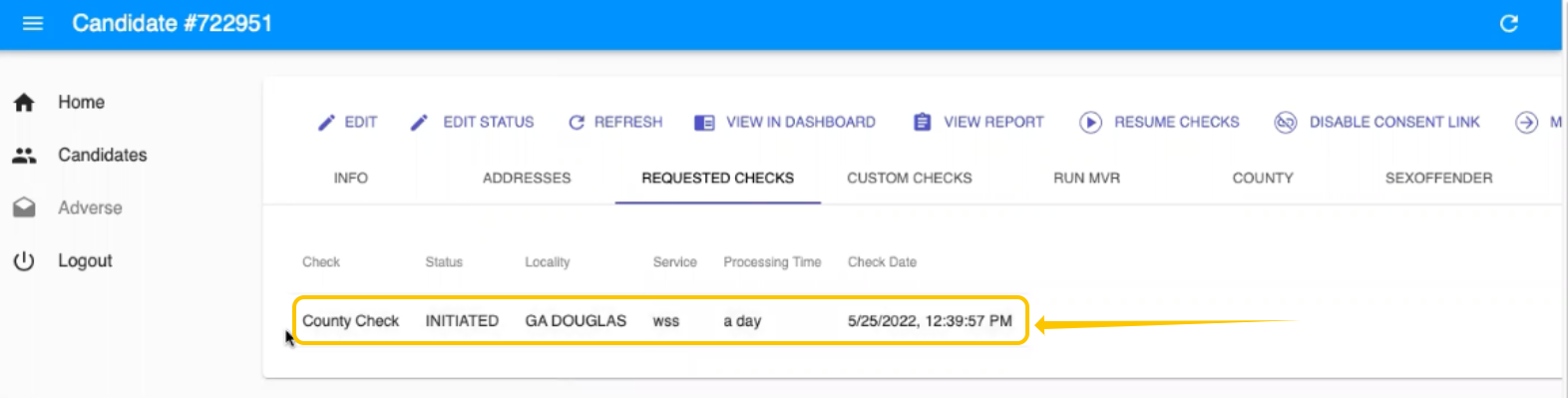
Step 4: In Turn Admin, navigate to the "REQUESTED CHECKS" tab and confirm that the check has been initiated in WSS.
Step 5: Add order
- Sign into Connect
- Navigate to the Menu - Add Order
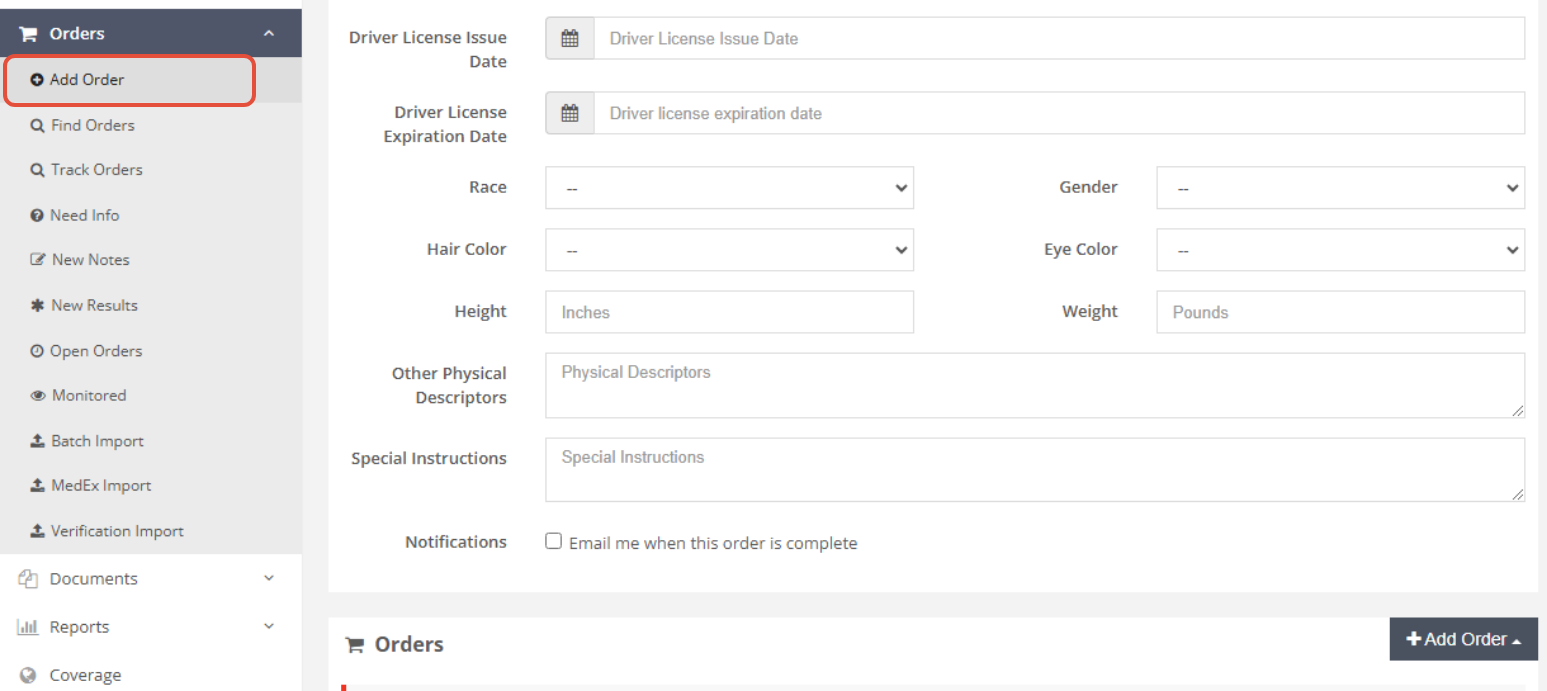
- Fill the proper information and in Add Order drop-down menu, select Domestic
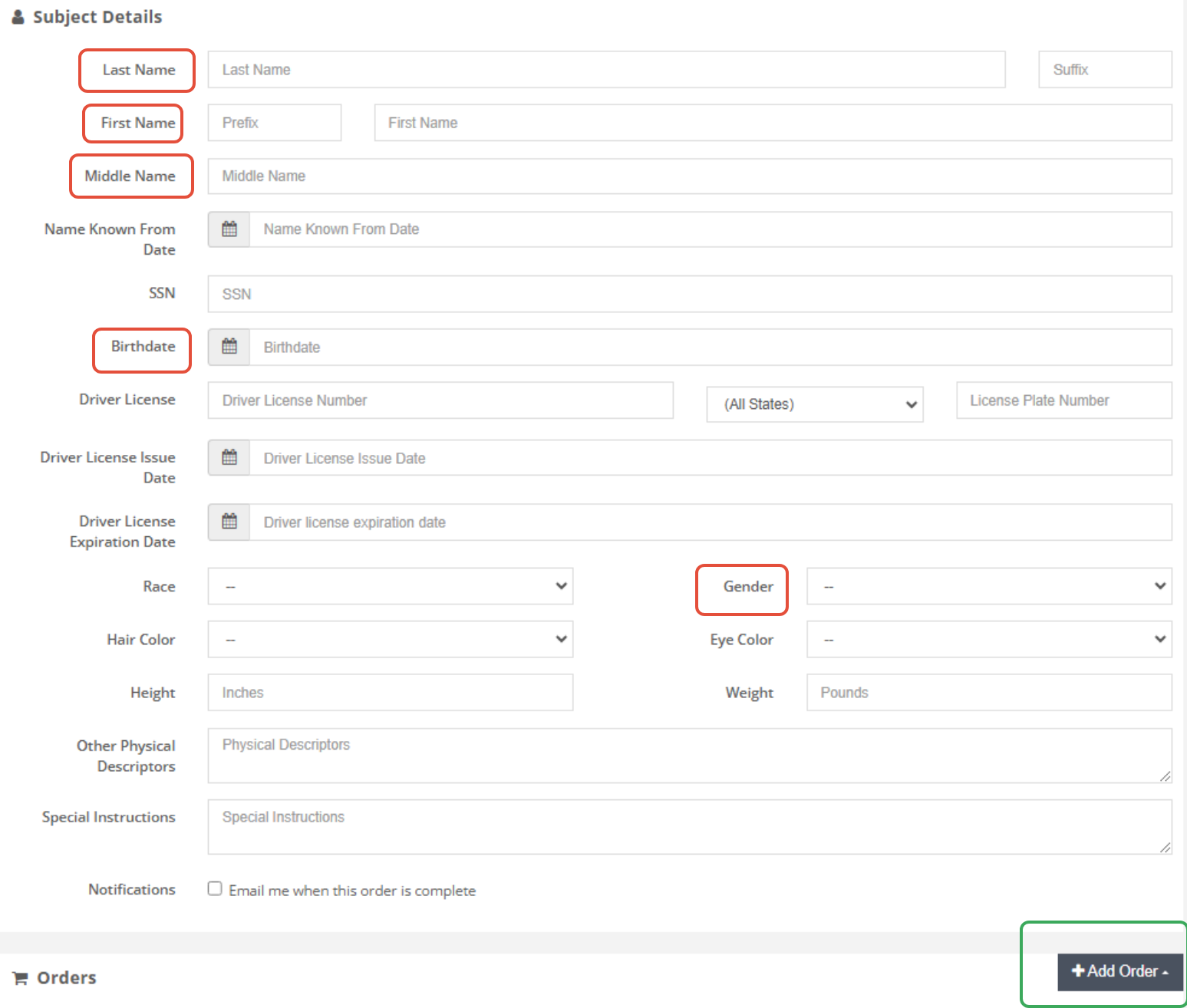
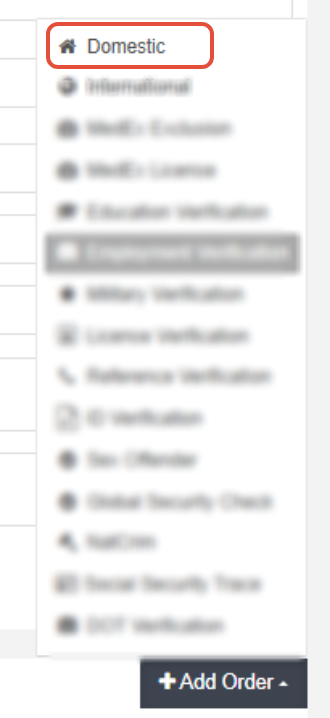
- Make sure you are selecting the correcting State to process the correct Statewide (You will see it in the subject of the ticket) and on search type the felony and misdemeanor for a 7-99 years lookback, depending on the State. Please review the link found on Edge Cases and Exceptions
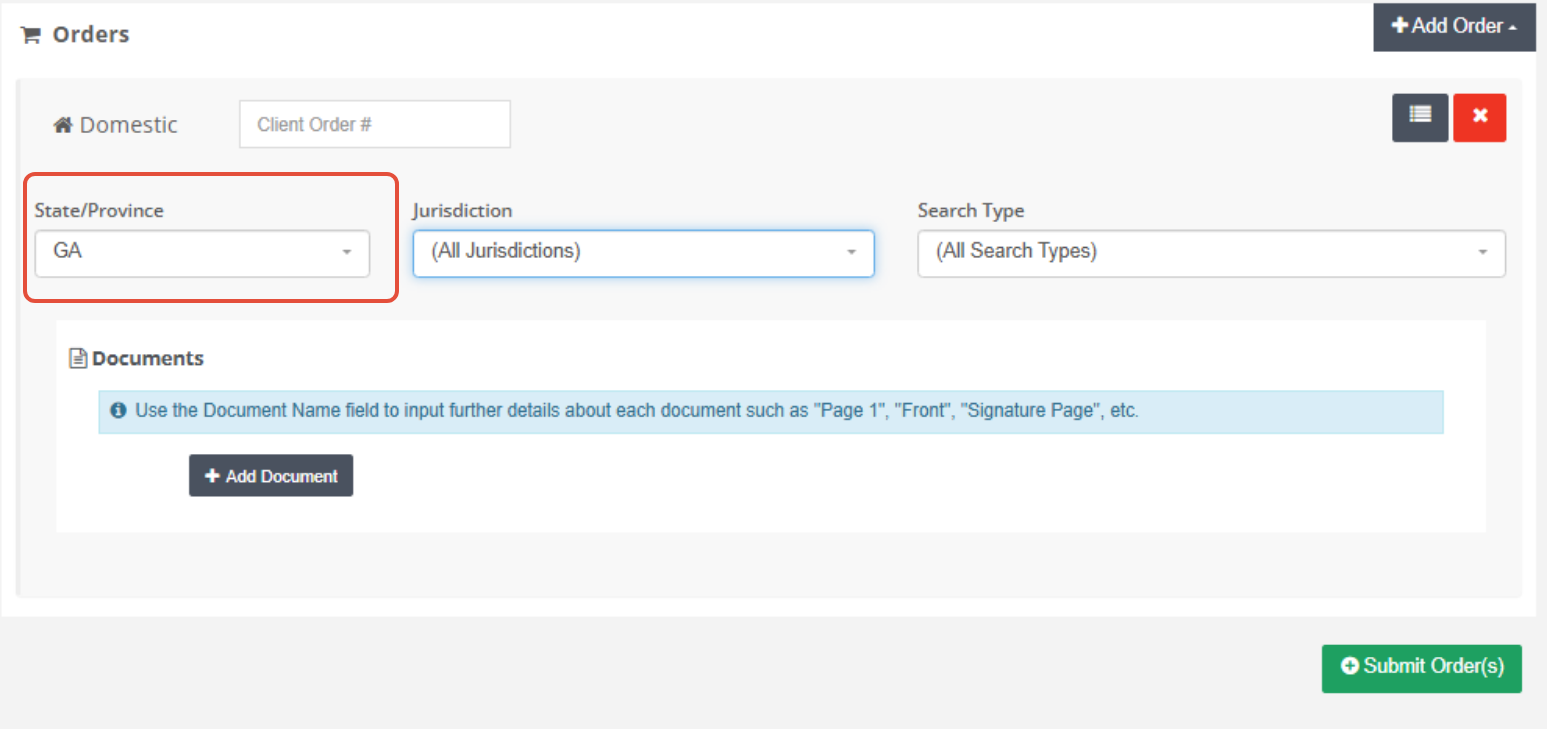
- Enter the required information:
- Client Order Instructions: Include the applicant's gender (if available).
- Upload the consent form
How to Upload the Consent Form
- Go to Turn Admin and locate the candidate’s file.
- Print the first two pages (after the cover page) of the Consent Form.
- Upload the Consent Form to Connect (Vendor Portal):.
- Attach the file under the missing Consent request.

- Attach the file under the missing Consent request.
- Once you've selected the correct State,
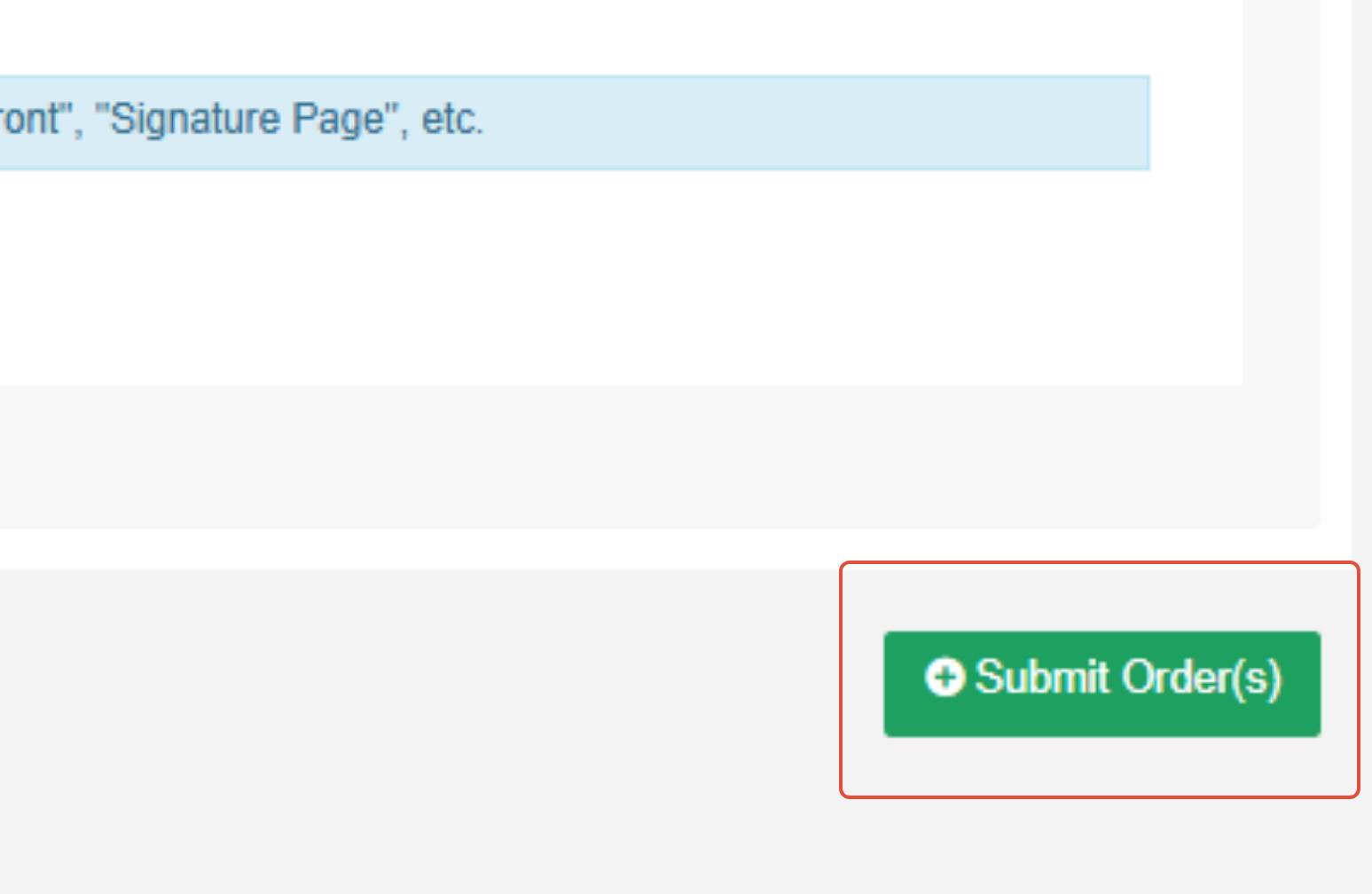
- There will be a message briefly displayed at the top of the screen. Please copy this text and paste it into a private note on your Freshdesk ticket.
"Order has been saved and is ready to be worked. Order ID: 11111111"
Step 6: Create a private note in Freshdesk:
- Please include the note from Connect:
- "Order has been saved and is ready to be worked. Order ID: 111111111111111111
- Applicant's First and Last Name
- Current Status
When the report is complete, we will receive an email from WSS. It typically takes 5-10 business days.
Step 8: Download and Prepare the PDF for the Partner
- Click Download Results, to save the report as a PDF
- We need to prepare the PDF before it can be uploaded and provided to the partner. Open the PDF with Preview (Mac) or Acrobat (PC).
- Place a solid white rectangle over areas you don't want visible. Remove all branding, imagery and information related to the vendor from the header and footer.
- Be sure to remove the note that says, "school uses national clearinghouse" and the line that says, "Order created on behalf of Turn Technologies/"
Step 9: Review the Criminal Records
- If there are NO criminal records, the record is CLEAR.
- If the results came back WITH criminal records:
- Review and determine if the charges are reportable in accordance to State and Federal Laws.
- If there are records that can be reported, the report is CONSIDER.
- If there are records that cannot be reported due to State and Federal Laws, remove the charges from the report. The report is CLEAR.
- If you have any questions during this review, please reach out to your leadership team.
- Review and determine if the charges are reportable in accordance to State and Federal Laws.
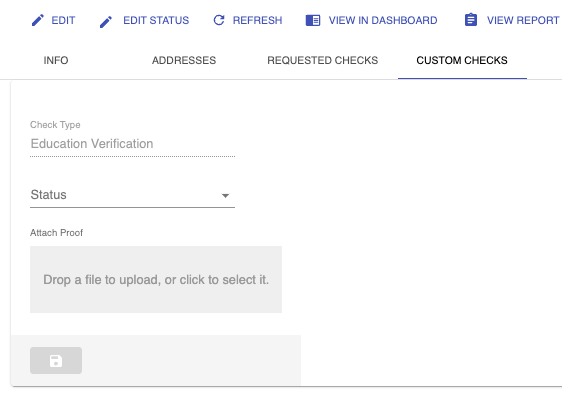
Step 10: Upload The PDF to Turn Admin.
- Navigate to the CUSTOM CHECKS tab and set the one off check as FULFILLED and choose the corresponding status.
- Reportable hits = CONSIDER
- No hits or only hits that were found to be unreportable = CLEAR
Step 15: Update the Freshdesk ticket:
- Leave a private note:
- Include that the PDF was uploaded to Turn Admin
- The result of the report (CLEAR, CONSIDER)
- Current status of the background check.
- Add the tag, "clear" or "hit" to the Freshdesk ticket.
- RESOLVE the ticket.
Edge Cases and Exceptions
For exceptions. Please review the following link:
Was this article helpful?
That’s Great!
Thank you for your feedback
Sorry! We couldn't be helpful
Thank you for your feedback
Feedback sent
We appreciate your effort and will try to fix the article