Requesting a Statewide check:
Compliance Agent will receive this type of ticket

Open applicant’s profile in Turn Admin
Make sure the entered information in the BGC matches with the applicant’s ID/DL. (you will find the ID/DL in Turn Admin)
Click on requested checks, in order to see if this applicant already has a subject created in WSS/Fuseos. If not you have to create a new subject.
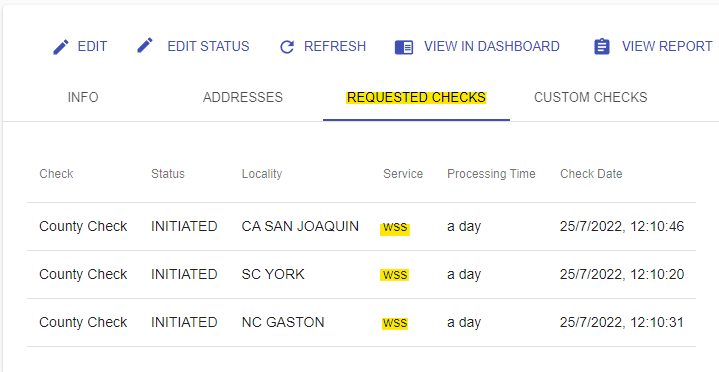
5. Then, go to WSS/Fuseos portal to search our applicant in the subject list. (search by last name, first name)
6. If our applicant has multiple subjects, always will select the most recent
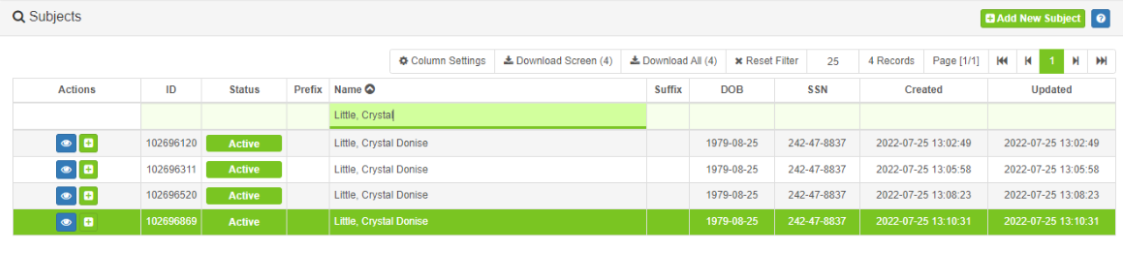
7. Open the subject’s profile and click on “Add Order”

8. Select the option “Criminal Statewide”

9. Fill in the following information:
State
Reference Number: Insert Turn ID
Client Order Instructions: Insert applicant’s gender
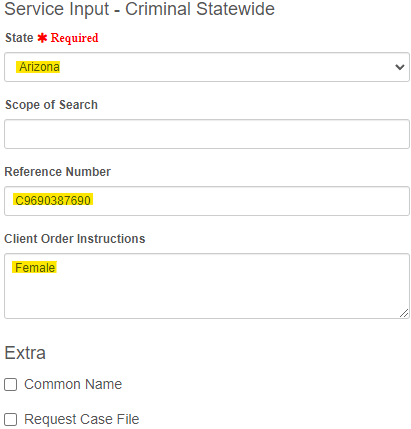
10. Click on “Send Now” and copy the Order ID Number (you will paste this number in your Freshdesk ticket)


11. Come back to the Turn Admin and download the applicant’s consent form.
12. Then, to upload the consent form in the WSS/Fuseos portal, click on “Add files”

13. Attach the consent form and click on “Attach File(s) to Subject”
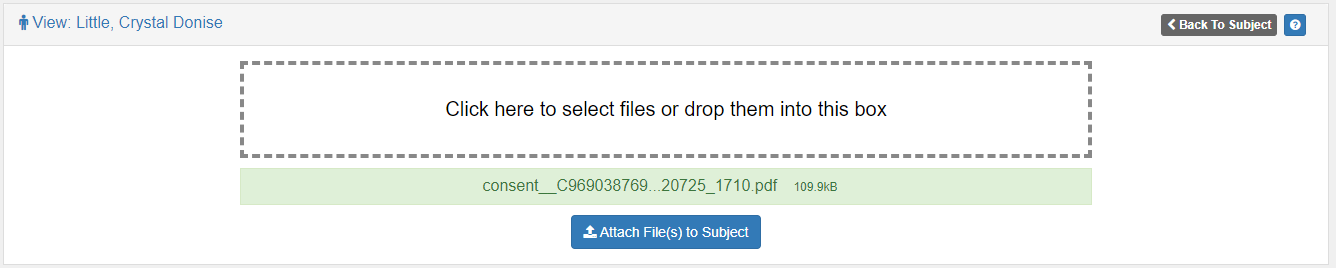
14. Finally come back to your ticket and add a note with: Applicant’s Name, Order ID Number and “consent form has been uploaded” (make sure you already upload the consent form)
15. IMPORTANT: ADDITIONALLY WILL NEED TO CONFIRM THE APPLICANT’S GENDER VIA LIVE CHAT, (JUST IF THIS ONE IS AVAILABLE) USE THE FOLLOWING WORDING:
"Hi, I would like to confirm the subject's gender is MALE / FEMALE for ORDER ID: #CR_____________. This was also included in the "Client Order Instructions" field when the order report was ordered. Thank you!
PLEASE ADD THE SCREENSHOT TO THE FRESHDESK TICKET:
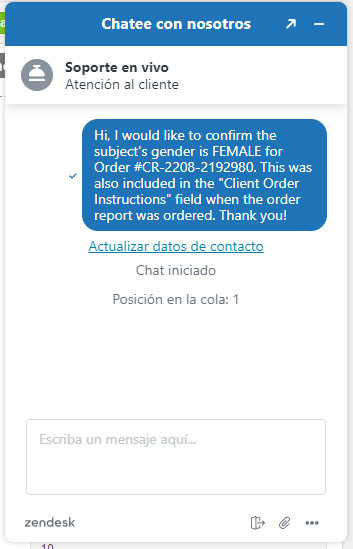
IF THE CHAT SERVICE IS UNAVAILABLE, DO NOT SEND ANY MESSAGES SINCE THIS WILL CREATE AN UNNECESSARY EMAIL FOR WSS. (Information provided on 01/19 by product team)
Uploading the Results:
Once the report is completed, you will get an email from Wholesale Screening Solutions
To download the report go to WSS/Fuseos portal.
Click on “Orders” then “Criminal List”
Paste the Turn ID in the "Customer Order ID” bar
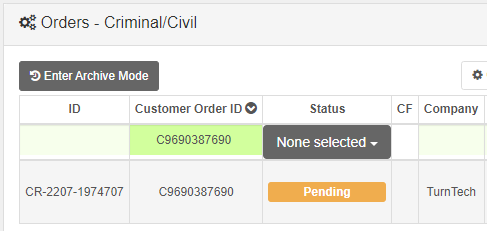
Open the order and download the results.
Save the results as PDF and remember to erase any “WSS” seals.
Come back to applicant’s profile in Turn Admin
Click on “Custom Checks” and Click on “Edit”
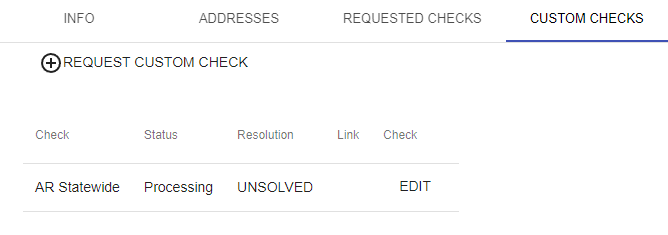
If the results are clear, set the status as “clear” and upload the file
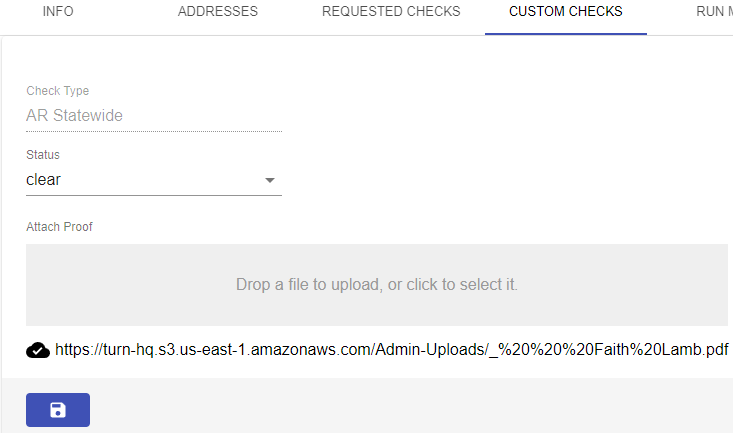
Click on “Save”, view the Partner Dashboard to make sure the results were uploaded.
If the results came back with criminal records:
If the charges are reportable in accordance with the State and Federal laws, set the status as “consider” and upload the PDF
If the charges are NOT reportable in accordance with the State and Federal laws, remove/erase the unreportable charges and then upload the PDF
If you have any questions, related to criminal records, please reach out to your manager.
Go back to the ticket, leave your note and resolve the ticket.
Finally, add the corresponding tag in the Freshdesk ticket “clear” or “hit”
IMPORTANT NOTES:
WSS offers statewide checks in the following States but they have some additional requirements or boundaries:
Georgia- We must upload a release form. As of today, the general consent form is enough.
Indiana- If there are a lot of results the applicant will need to initiate the fingerprint process but Turn does not offer this service. If you have any case like this please reach out to your direct Manager.
SC- we need the applicant’s gender
TN- we need the applicant’s current full address
WSS DOES NOT offer statewide checks in:
CA – No reliable source
LA - There is a statewide, but it is difficult to find anyone capable of running it and it is only for Healthcare providers. We attempted this time last year and could not locate anyone to run this for us.
MA - We have to register with the state (we have to take tests, there are inspections involved, it is very cumbersome). Our clients also have to register and their clients also have to register. The search is expensive and not worth much.
NH - It requires a notarized release, then it has to be overnighted to us, then we have to overnight it to the state police. The process would be laborious, time consuming, and very expensive. There is also extremely low demand for the product since it requires a notarized release.
NV - It is slow, cumbersome (requires a notarized release). and expensive. There are also limits on what it reports back which limit it’s efficacy
OH – Only valid statewide is fingerprint based
VA – Virginia State Police (VSP) requires a signed contract and limits the use of the Virginia Non-Criminal Justice Interface (NCJI) system to Consumer Reporting Agencies (and others authorized by statute). Wholesale contacted the VSP and inquired about accessing the NCJI system but was informed that since WSS would be a third party provider they could not have electronic access. However, Wholesale could/can receive the crime history data via paper delivery, which takes two to four weeks to obtain (although no-hits are returned quicker). Furthermore, upon receipt of the paper report Wholesale would be restricted to “telling” their clients if the record met its client’s criteria or not – but Wholesale cannot provide any of the crime data/details.
The penalty for unauthorized access to the VSP NCJI system and/or unauthorized distribution of data obtained from NCSI is $10K per violation and a criminal misdemeanor charge.
WV – Only valid statewide is fingerprint based
WY – It appears that only the applicant can order the statewide check on themselves and they can then direct it where they want it to be sent.
American Samoa (AM)
Guam (GU)
Northern Mariana Islands (MP)
United States Minor Outlying Islands (UM)
Virgin Islands (VI)
*The above information was provided by Crystal from WSS via live chat on 07/26/2022
IF YOU MAKE A MISTAKE WHILE UPLOADING A PDF
Change status “to_processing”
Upload new PDF
Check in Dashboard to make sure correct version uploaded
Return to Turn Admin and upload the PDF again
Select the correct status (consider or clear)
Check in Dashboard to make sure correct version uploaded
If the status has changed, go to turn admin > edit status > manual > move forward
Was this article helpful?
That’s Great!
Thank you for your feedback
Sorry! We couldn't be helpful
Thank you for your feedback
Feedback sent
We appreciate your effort and will try to fix the article