Tools & Platforms Used
Freshdesk – Ticketing system where requests are managed.
Turn Admin – Platform for retrieving applicant data.
JotForm – Platform where applicants provide consent for FMCSA checks.
FMCSA Clearinghouse – System where background checks are submitted and reviewed.
Email (CC: recruiting@siteone.com) – Used for applicant communication and follow-ups.
*Please click on the hyperlinks, they will direct you to the correct site
TABLE OF CONTENTS
- Tools & Platforms Used
- Workflow Overview
- Step 1. Receiving & Identifying the Request
- Log into Freshdesk.
- Step 2. Retrieving Applicant Information from Turn Admin
- Access Turn Admin.
- Step 3. Obtaining Required Consents
- Step 4. Submitting the FMCSA Check Request
- Step 5. Managing FMCSA Responses
- Ticket Management & Responsibilities
- All Freshdesk tickets remain open or pending until a final resolution is reached.
Workflow Overview
Step 1. Receiving & Identifying the Request
Log into Freshdesk.
Filter tickets assigned to you under:
SiteOne - Queries to Request (for checks that need to be requested).
SiteOne - Pending Queries (for ongoing checks awaiting responses).
Open the assigned ticket and verify the applicant details.
Step 2. Retrieving Applicant Information from Turn Admin
Access Turn Admin.
Search for the applicant’s profile.
Download the applicant’s driver’s license photo and paste it into the Freshdesk ticket.
Add a ticket note confirming the information was retrieved.
Step 3. Obtaining Required Consents
Consent 1: JotForm
Check if the applicant has submitted the JotForm consent:
If YES → Download the completed form and attach it to the Freshdesk ticket.
If NO → Wait for JotForm’s email notification and check periodically.
If delayed, send a Canned Response for Compliance - JotForm FMCSA to the applicant.
Tag the ticket with "Jotform Pending" and leave it Open.
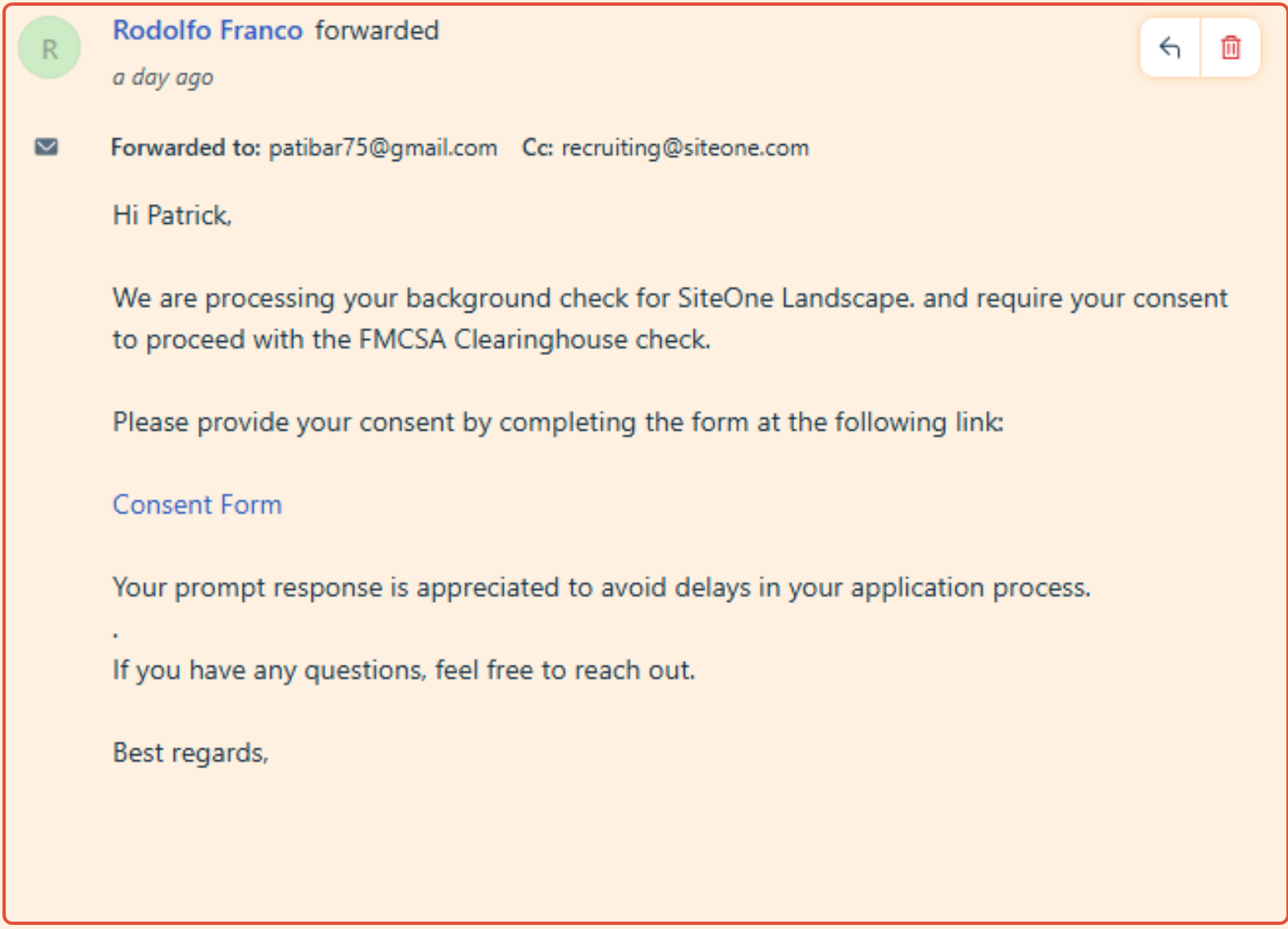
Step 4. Submitting the FMCSA Check Request
Once the JotForm is obtained, submit the FMCSA check request:
Log into JotForm:
Submit the FMCSA check request for the applicant.
Attach a screenshot confirmation to the Freshdesk ticket.
Log into FMCSA Clearinghouse:
Go to "Conduct a Query".
Select the employer (SiteOne).
Enter the applicant’s First Name, Last Name, DOB, License Number, and State.
Click "Verify Driver Information".
Select "Full Query" (pre-employment check).
Confirm the request.
Click "Request Driver Consent" to finalize.
Take a screenshot of the request and attach it to the Freshdesk ticket.
Change the ticket status to "Pending".
Add the tag "requested"
Consent 2: FMCSA Clearinghouse
After JotForm consent is received and the FMCSA query has been submitted, verify the Clearinghouse consent:
Log into FMCSA Clearinghouse.
Navigate to Query History and locate the applicant.
If the applicant has NOT provided their consent in Clearinghouse:
Send a Canned Response for Ops - Clearinghouse Consent to the applicant.
Tag the ticket with "ClearinghouseConsent”and leave it Pending.
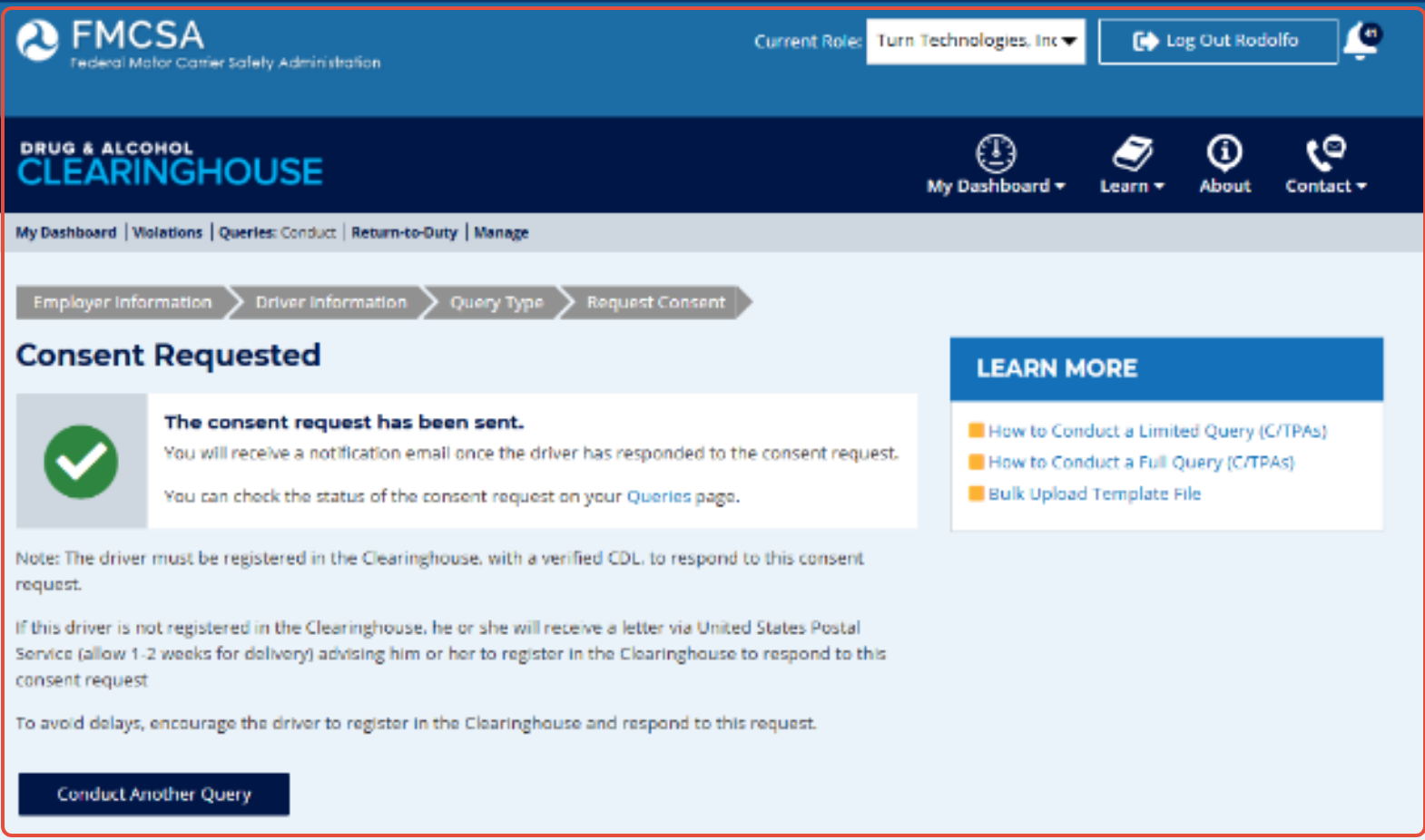
Consent Follow-ups
For FMCSA Consent → Check status every hour.
For JotForm Consent → Wait for JotForm’s email notification.
The assigned agent is responsible for contacting the applicant and must always CC recruiting@siteone.com .
Please use this material for reference (watch the video): Conduct a Query
Step 5. Managing FMCSA Responses
Scenario 1: Applicant Not Found in FMCSA Database
If the system returns an error stating "Driver not found":
Send a Canned Response for FMCSA Registration Required to the applicant.
Tag the ticket with "Clearinghouse RegReq".
Leave the ticket Open for follow-up.
Scenario 2: FMCSA Query Shows "Pending"
If the system shows "Pending" status:
Take a screenshot and attach it to the Freshdesk ticket.
Leave the ticket Pending and continue monitoring for updates.
Scenario 3: FMCSA Query Is Completed
Once FMCSA provides a final result:
Download the check result.
FMCSA, Uploading the Results - Watch the video
Please check the video attached below or click the hyperlink
Must Look like this:
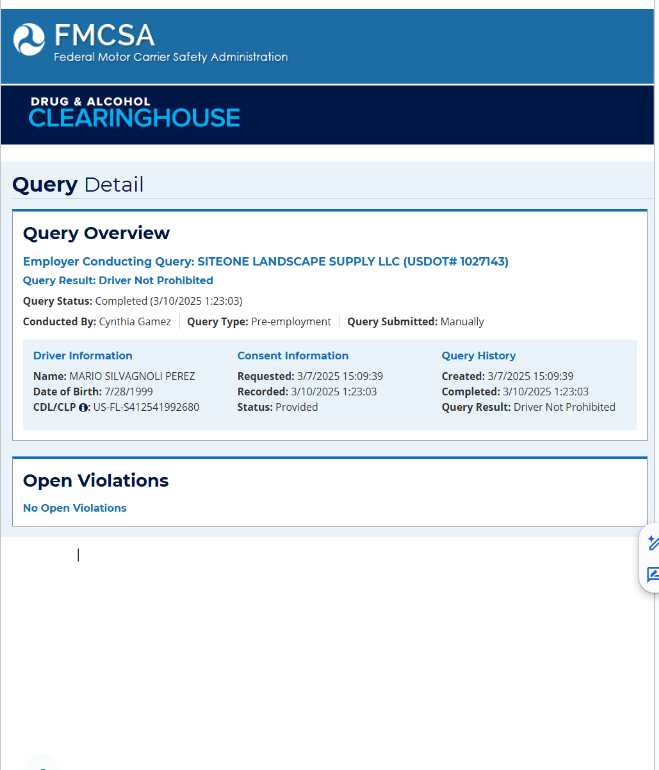 To clear the format, please use the following template: https://docs.google.com/document/d/17mdHq5gAolMUafgmsK0utdAwFFT1YVYLZLgrD6opLaw/edit?tab=t.0
Please attach it to the Freshdesk ticket.
Change the ticket status to "Closed".
Ticket Management & Responsibilities
All Freshdesk tickets remain open or pending until a final resolution is reached.
The assigned agent is responsible for contacting applicants and monitoring updates.
Always CC recruiting@siteone.com on all applicant communications.
FMCSA consent follow-ups must be checked every hour.
JotForm consent follow-ups rely on JotForm email notifications.
Tagging System in Freshdesk
JotFrom Credentials
URL: https://www.jotform.com/inbox/242285764123053/signAllDocuments/6146845667655696169
User: compliance@turn.ai
Password: Atizapan1981)
Was this article helpful?
That’s Great!
Thank you for your feedback
Sorry! We couldn't be helpful
Thank you for your feedback
Feedback sent
We appreciate your effort and will try to fix the article